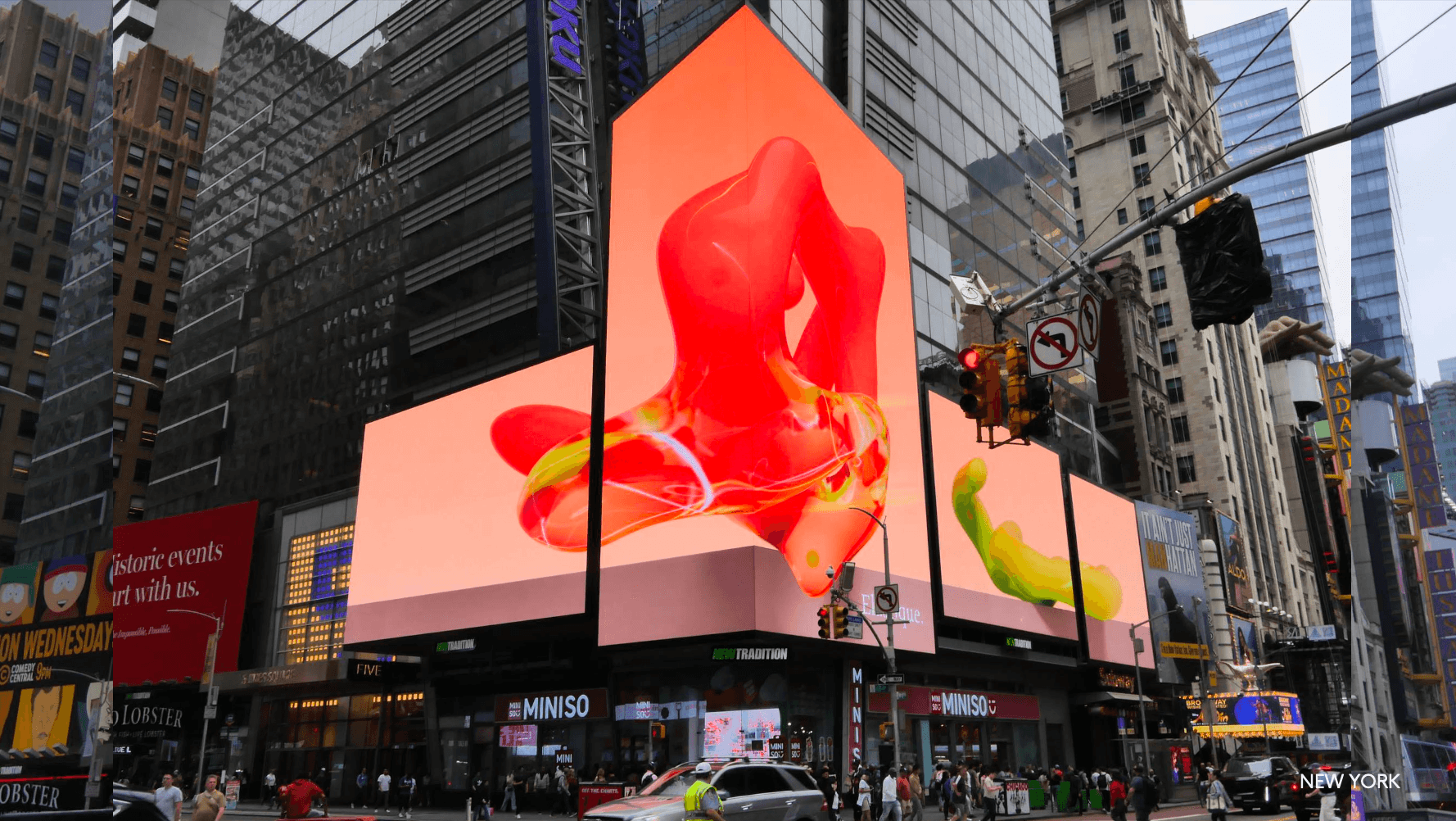
PREMIERE PRO — MOTION ARTWORK
Download Premiere Pro templateDownload the complete package, including the Assets folder, to keep all linked files available.
• “*NY 1093 Template (DO NOT EXPORT)” is the full-signage preview sequence. Use its nested clips to test artwork and check alignment across signs. Do not export this full-layout sequence for submission. Pink lines mark sign boundaries and corners.
• Under “*TO EXPORT”, open “1093-A (FULL)”, “1093-BC (FULL)”, “1093-D” and “1093-E” to place finished artwork or design from scratch. These sequences are built to spec and nested into the full-layout preview. Export these four sequences individually.
• Keep A + Return together in “1093-A (FULL)” and B + C together in “1093-BC (FULL)”.
• The Assets folder holds linked asset files and does not need to be opened or edited.
• Preserve “1093 NON-VISIBLE AREAS”. This layer masks areas hidden on the live screens, including the B/C incline, and includes pink guides for corners and boundaries.
• Hide “Corner (HIDE BEFORE EXPORTING)” before exporting: its pink corner line must not appear in the final file.
• Individual nested sign sequences can be edited if needed, but must not be exported separately when they belong to A + Return or B + C.
PHOTOSHOP — STATIC ARTWORK
Download Photoshop template• Preserve the “NON-VISIBLE” layer group. It masks areas hidden on the live screens, including the B/C incline.
• Preserve the “SEAMS” group in the master preview. It contains pink guides indicating corners and sign boundaries.
• Open the smart objects under “SIGNS” to insert finished artwork or design from scratch. They are embedded in the full-signage master for checking the overall composition and are built to spec.
• Export the four appropriate smart-object artworks: “1093-A (FULL)”, “1093-BC (FULL)”, “1093-D” and “1093-E”. A + Return and B + C must each remain combined.
• Do not export the complete full-signage master for submission. Check that no guide lines appear in the final artwork.